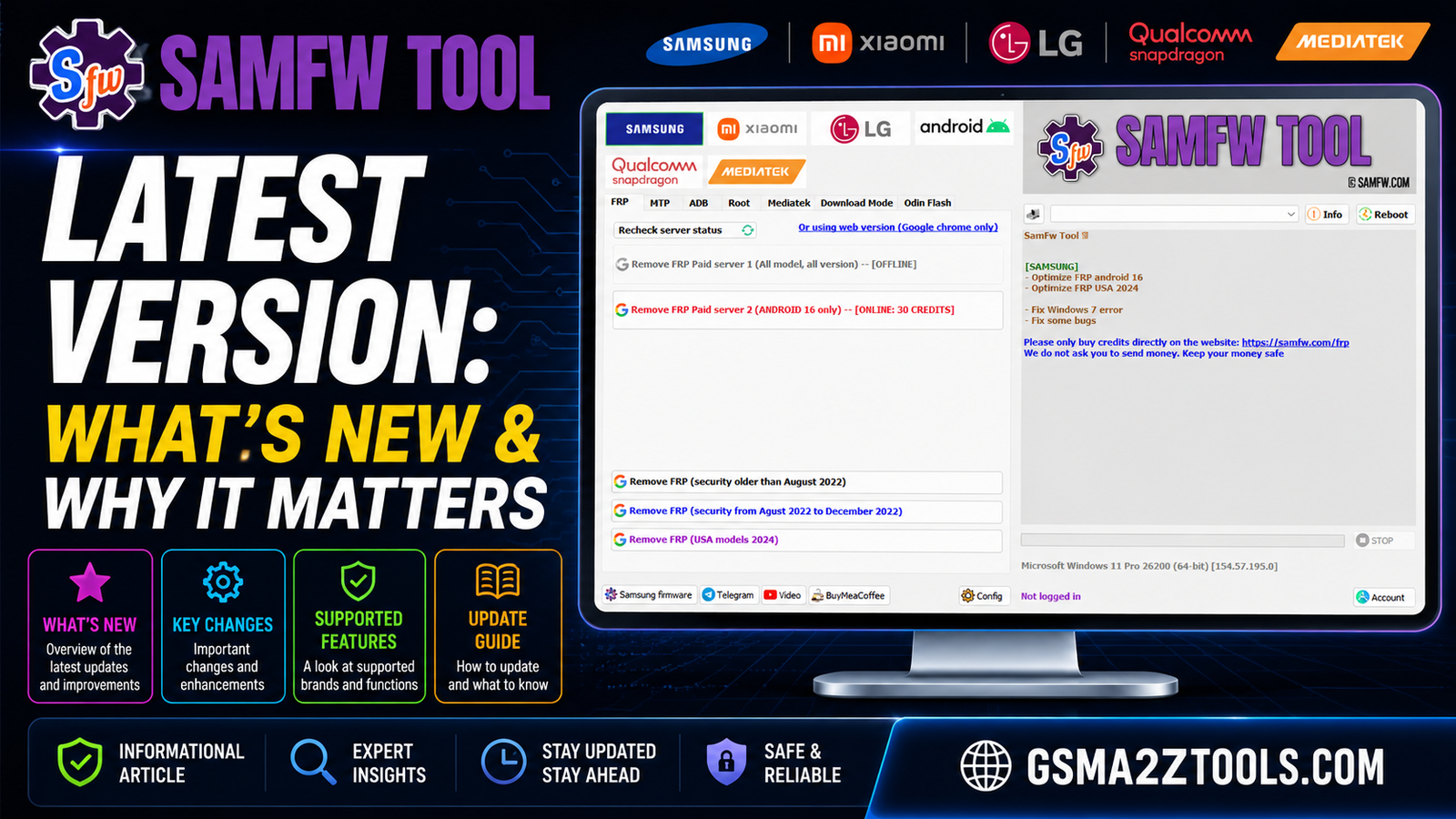
The updated samfw tool interface shows separate paid and free frp removal servers organized by android version and region to match different device security patches.
An Update Can Feel Like A Minor Notification But It Can Greatly Improve Your Experience With The Software. The Developers Of Samfw Tool Have Released A New Version. This Version Includes Many Improvements. Many Samsung Users And Mobile Repair Technicians Should Review This Information Prior To Installing The Software Update. Users Of This Application Manage And Modify Firmware Of Samsung Devices.
Thus This Information Pertains To Mobile Repair Technicians As Well As End Users. Repairing A Device May Involve Multiple Technicians. The Goal Of This Post Is To Highlight The Recent Improvements Highlight The Features Of This Update Which Is Drawing The Attention Of The End Users And Provide Recommendations Prior To Installing This Update.
Streamlined Compatibility Matrix For Modern Samsung Models
Samfw Tool Provides A More User-friendly Way To Check Compatibility With Modern Samsung Devices. The Matrix In Samfw Tool Organizes Information By Model Android Version Chipset And Region. With This Information Users Can Select The Correct Option After Download. A Recent Update To The Matrix Helps Staff Performing Authorized Frp Firmware And Device Management To Eliminate The Guesswork In Selecting The Correct Feature Set For The Device. The Matrix Provides Valuable Information For Staff Performing Frp By-pass.
| Compatibility Detail | Why It Matters |
|---|---|
| Model Number | Helps Identify The Exact Samsung Variant Supported By Samfw Tools. |
| Android Version | Ensures The Selected Feature Matches The Installed Software. |
| Chipset | Prevents Tool Errors Caused By Hardware Differences. |
| Region | Confirms Firmware And Feature Support For The Correct Market. |
Which Samsung Chipset Families The New Samfw Update Officially Supports
- Samfw Tool Now Supports Samsung Devices With Exynos Snapdragon Mediatek And Unisoc Chipsets. Support For More Chipsets Gives Users A Clearer Starting Point When Considering Features Of Samfw Tool.
- Users Can Now Compare Their Samsung Device To Other Devices Based On Chipset To Determine How Can Be Used On Their Device.
- In The Samfw Tool Gui Users Can Manage Certain Samsung-related Tasks. Support For A Particular Chipset Gives Users More Confidence In Managing The Related Samsung Devices. However Supports Other Device Management And Maintenance Tasks Only For Chipsets For Which The Tool Provides Support.
- Before Using On A Samsung Device Users Must Check If Supports That Device. Users Should Check The Release Notes Determine The Exact Model Of Their Device And The Android Version On Their Device. Only Features Supported For A Particular Device Should Be Used On The Device.
How Compatibility Changes Affect Owners Of Legacy And Newer Devices
- The Use Of The Samfw Tool Will Result In Changes To The Compatibility Of Older Samsung Devices. Those Changes Will Result In A Loss Of Support For Older Models. In Order To Continue To Use Samfw Tools To Perform Authorized Service Users Will Be Required To Downgrade The Firmware Version To An Older Release. The Tools Can Be Used To Downgrade Firmware.
- Users Of Newer Models Will See Improvements To Firmware Recognition And The Performance Of Actions Supported By Firmware. These Improvements May Include The Recognition Of The Latest Security Patch Level Updates (spls) Released By Google.
- In Order To Identify The Features Supported By The Device And To Prevent Unexpected Failure During Operation Users Should Check The Model Number Processor And Android Version Of Their Device Prior To Using.
- Samfw Tool Updates May Improve Support For Older Models; However Updates To The Tool May Include Support For The Latest Models At The Expense Of Older Models. Therefore Users Should Evaluate Updates Before Installing Them.
Streamlined Installation And Compatibility Notes
- The Samfw Tool Provides An Easier Way To Set Up Samsung Drivers And Tools For Windows Users. It Breaks The Process Down To Easy To Understand Steps. These Steps Include Downloading And Extracting The Samfw Package Installing Samsung Usb Drivers And Running The Samfw Tool As Administrator.
- Before Installation It Is Important To Confirm Your Windows Version (e.g Windows 7/8/10/11) And Check If Your System Has Enough Free Space Stable Ram And A Faster Usb Connection.
- It Is Important To Get From The Right Source To Reduce The Chances Of Getting Corrupted Or Malicious Files.
- When Doing Authorized Repairs/replacements Samsung Service Can Change The Mode Of Your Device And Also Update Your Device Software. Since Work In Mtp/Adb Mode And Also In Some Other Samsung Service Tools Work In Other Samsung Service Modes Like Download/Service/Update Modes Limitations May Occur Due To Recently Introduced Samsung Service Updates And Security Patches.
Supported Devices And Firmware Versions: Quick Checklist For Success
- The Samsung Model You Have Must Be On The Supported Devices List. Other Models May Not Work As Intended Or May Not Work At All.
- Understand The Software And Firmware Levels Of Your Device. This Information Can Be Used To Identify Which To Use On Your Device.
- When You Have Determined Which Samfw Tool To Use And Confirmed The Firmware Levels Of Your Device You Can Find And Download The Stock Firmware Of Your Device Checking That It Is For Your Exact Device Model Region And Version.
- Make Sure Your Device Is Sufficiently Charged And Use The Official Samsung Usb Drivers. Also Use The Original Data Cable Provided With Your Device.
System Requirements And Platform Compatibility (Windows Macos Linux Nuances)
- As Of Now Samfw Tool Only Runs On Windows Therefore Users Need To Have The Correct Version Of Windows Installed And Have Administrative Privileges In Order To Run The Samfw Tool. Users Also Need To Make Sure That Their Samsung Usb Drivers Are Installed And Working.
- Because Mac Os Does Not Have Support For Samfw Tools Mac Users Need To Install Windows Using Boot Camp.
- Users Running Linux May Be Able To Run Using Windows Emulation. However How Reliable This Method Will Be Is Unpredictable.
- There Are A Lot Of Variabilities When It Comes To Different Devices That Users Can Run Samfw Tools On. For To Work Other Variabilities Like Firmware Security Restrictions And Usb Drivers Need To Be Taken Into Consideration.
Common Installation Pitfalls And How To Avoid Them
- Downloading Safely Is Important: Downloading Samfw Tools From Unreliable Sources Can Compromise Your Computer With Malware Or Other Security Risks. Make Sure You Download From Trusted Sources And Scan The Files Before Executing Them.
- Some Tips: Samsung Usb Drivers Are Often The Case When Detects Nothing When A Samsung Device Is Connected. Therefore You Must Install The Proper Samsung Usb Drivers Before Using Any Feature.
- Why Admin Privileges? Samsung Usb Drivers Are Often Large Files And Without Admin Privileges Are Often Unable To Access The Files And Complete The Task.
- Security Respectfully: Samsung’s Kies Technology Often Interferes With The Installation Of The Samfw Frp Tool. Therefore If You Get An Alert From Your Firewall Or Antivirus You Can Always Allow Access To The Tool For The Duration Of The Installation.
Compatibility With Samsung Models And Firmware Ecosystem
- Samfw Tool Is Used To Change The Firmware And The Locked Carrier On Select Variants Of Samsung Galaxy Devices. It Supports A Variety Of Regions And Chipsets. Because Of Its Flexibility Users Can Work With Different Samsung Devices Based On Lock Status And Family.
- Different Samsung Devices May Require Different Files Even When The Devices Seem Similar. Samfw Tools Require The Exact Model Number Csc And The Android Firmware To Function.
- After Samsung Devices Are Released The Ecosystem Changes And Certain Files May Become Unavailable Or Be Updated. In Such Cases Users May Experience Incompatibility Issues With Samfw.
- To Reduce The Risk Of Incompatibility Mismatched Firmware Connection Issues And Other Issues That May Occur During Maintenance Or Firmware Removal With The Samfw Frp Tool Users Are Advised To Check Their Firmware Version.
Checklist Of Samsung Models Validated With The Latest Samfw Release
- Exact Device Identity: Samfw Tool Ver. 3.0 Allows Us To Test More Samsung Devices. If Available We Will Provide The Model Number Carrier/region And Csc And The Chipset. After You Have Samfw Frp Tool Download Please Let Us Know The Status Of Each Feature Tested. For This Release Of The Tool We Will Consider A Feature As Supported If The Tool Is Able To Perform Frp Adb Mtp And Activate/deactivate Download Mode.
- Software Details: Be Sure To Check The Software Version And Security Patch Level Of Your Device As Users Will Need This Information To Decide If The Device Is On The Same Software Level As Theirs Before Using Samfw Frp Tool.
- Special Considerations: For Support On Use Of Tool Because Of Samsung Device Software Updates Or If The Tool Is Unable To Perform Frp Due To Samsung Security Patch Level Update Then State/provide Info On Workarounds (e.g. Use Of Adb Command Additional Samsung (oem) Unlock/device Modes Etc.) If Provided/required.
How The Tool Handles New Bootloader Or Firmware Changes From Manufacturers
- Because Samfw Tool Relies On Communication And Command-execution Capabilities With The Device To Retrieve And Work On Device Firmware New Bootloader Versions Can Lead To Samfw Tool Incompatibility. Additionally Official Software Updates Can Change The Services Offered Through Samsung’s Csc Server. Sam Frp Tool Relies On These Services To Interact With Firmware.
- Some Features Of Samfw Frp Tools Are Always Appropriate Adjustments To Maintain Tool Compatibility With Updated Samsung Device Firmware Security Patches And Modus Operandi.
- It Is Best Practice To Use The Updated Version Of samfw frp tools Before Working On A New Samsung Device. This Is To Avoid Detection And Connection Failures And Interruption In The Adb And Frp Services.
- Depending On The Exact Model Of The Device The Restrictions Applied By The New Bootloader On Can Lead To A Complete Loss Of Some Of Samfw Tool’s Features.
Also Read
Key Features Of Samfw Tools
Samsung
FRP
- Remove FRP (All Models, All Android Versions)
- Remove FRP (Android 16 Supported)
- Remove FRP (USA Models 2024)
- Remove FRP (Security Patch before August 2022)
- Remove FRP (Security Patch August 2022 – December 2022)
- Paid FRP Server (Credit Based)

Samfw frp tool dashboard with multi-brand frp flashing and android repair features
MTP
- Factory Reset
- Enable Secret Code for Verizon
- Disable Factory Mode
- KG Unlock (Untested)
- Change CSC
- Factory Reset (Test Mode)
- Disable Knox (Test Mode)

Used for frp removal flashing and android device management
ADB
- Valid / Change SN (Beta)
- Remove Samsung Account
- Enable Mobile Data Toggle
- Remove FRP
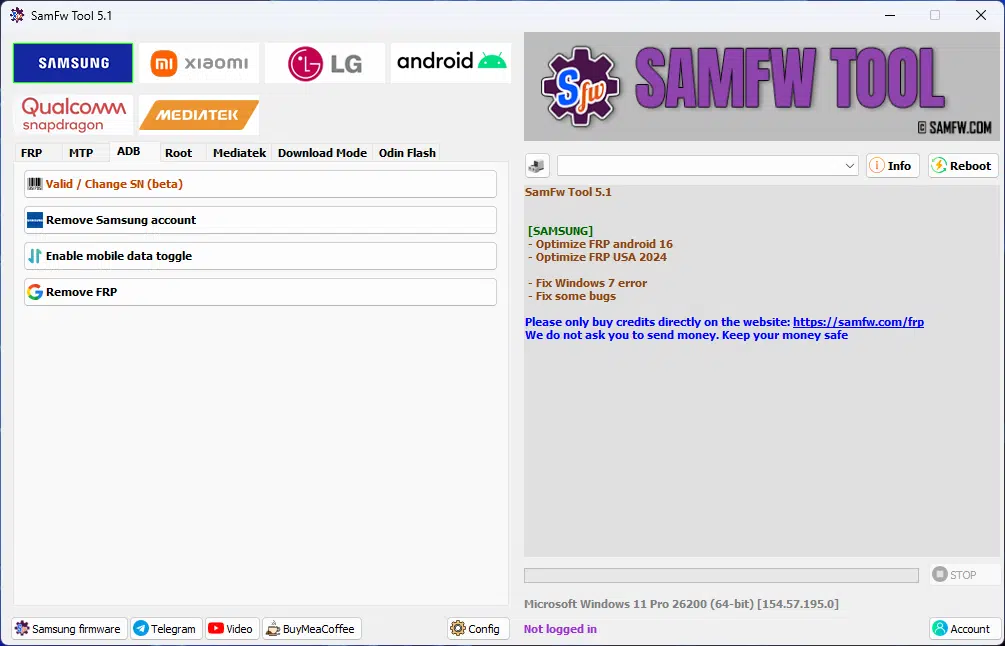
Download for removing frp flashing firmware and managing android devices.
Root
- Change CSC
- Change CSC (Manual)
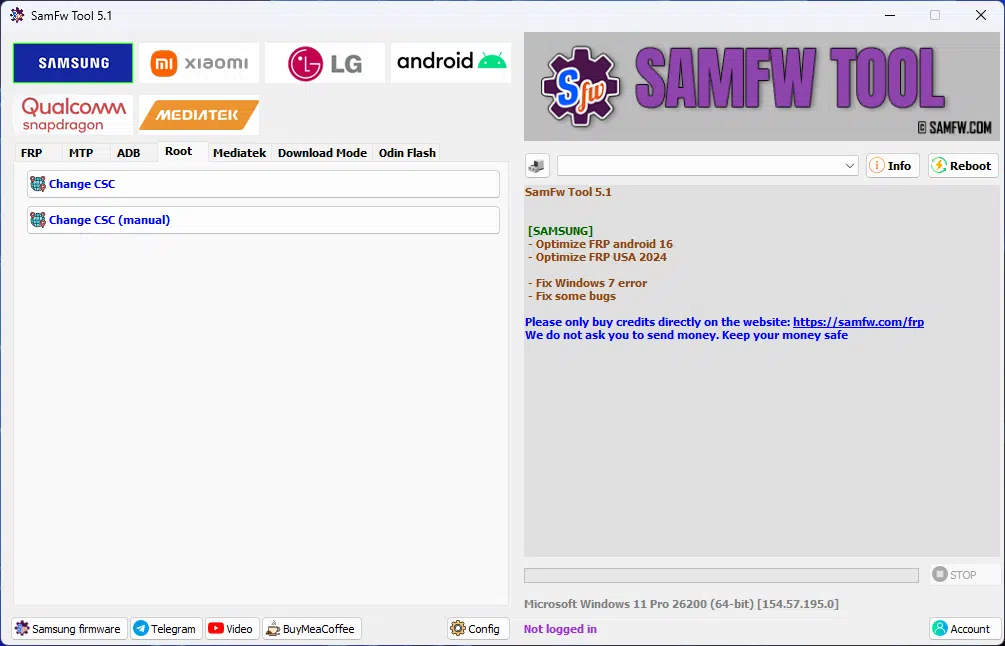
Samfw frp tool used for removing frp locks on samsung xiaomi lg and android phones.
Mediatak
- Factory Reset
- Format Userdata
- Remove FRP
- Unlock Bootloader
- Relock Bootloader
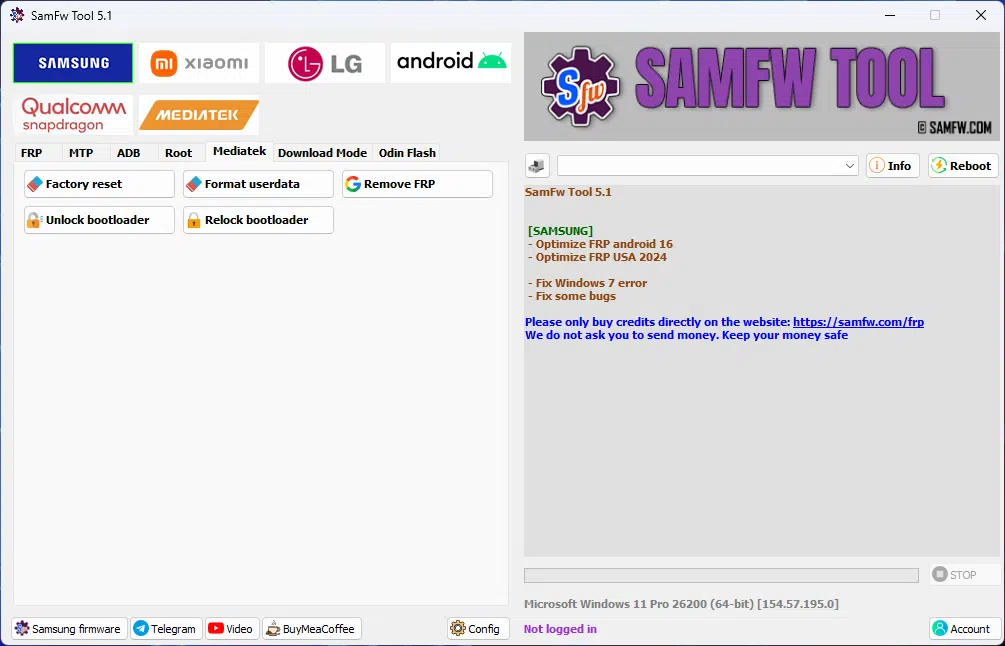
Helps remove frp fix software issues and manage android devices across samsung xiaomi lg and more.
Download Mode
- Softbrick Fix
- Factory Reset
- FRP Android 5/6 (Method 1)
- FRP Android 5/6 (Method 2)
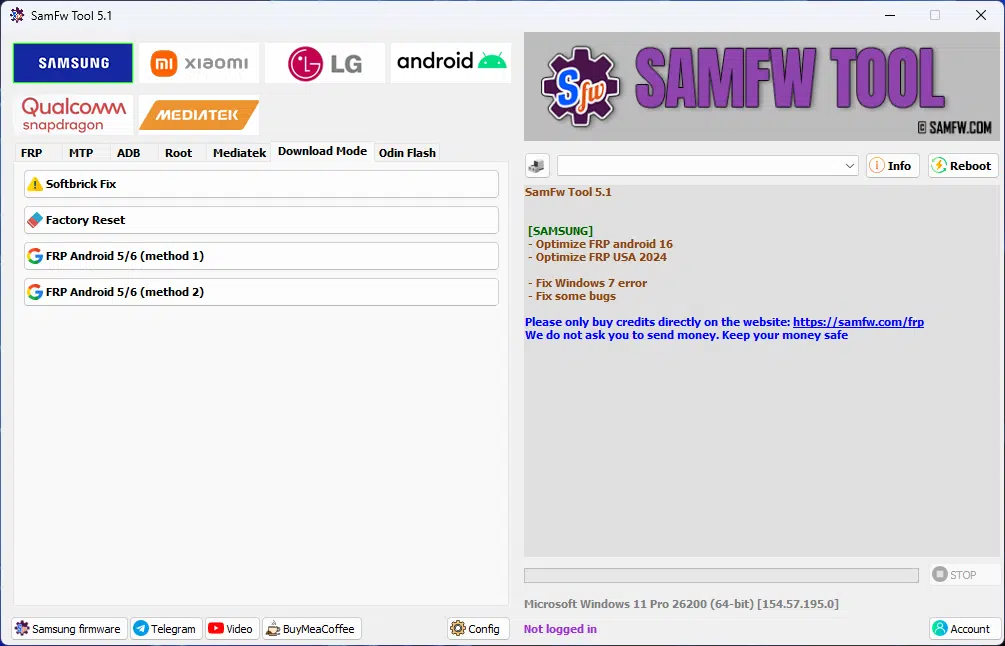
Supports samsung frp removal odin flashing adb functions and android device management.
Odin Flash
- BL (Bootloader)
- AP (System)
- CP (Modem)
- CSC
- DATA
- Recent (Firmware History)
- Open (Browse Files for Each Slot)
- Reboot
- Check MD5
- NAND Erase
- FLASH
- Clear
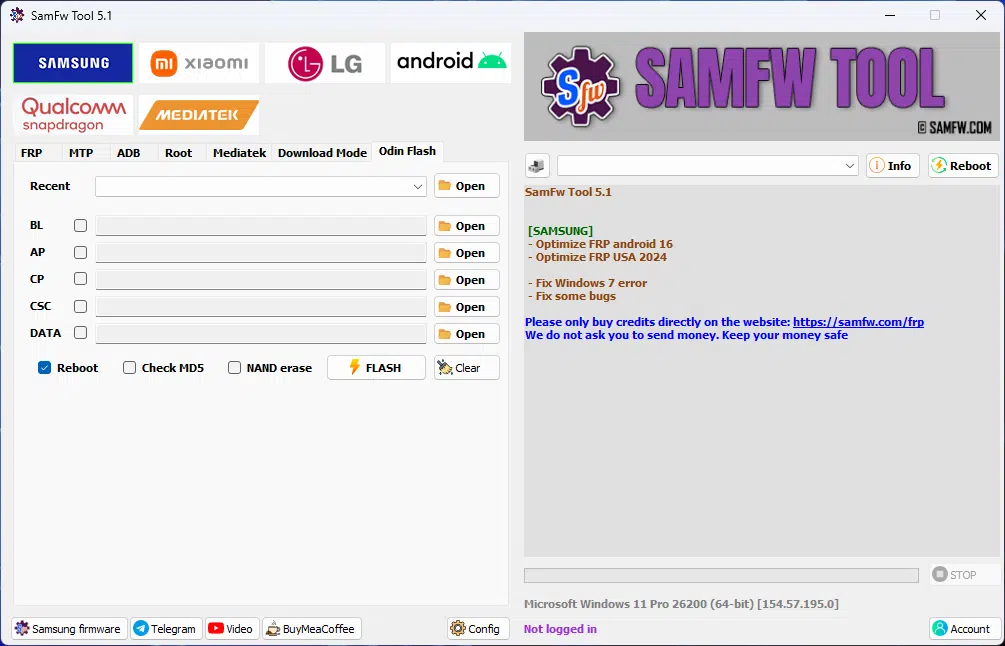
User interface with samsung xiaomi lg and android support options.
Xiaomi
ADB
- Bypass MiCloud Android 8.1
- [ROOT] Enable Diag Mode
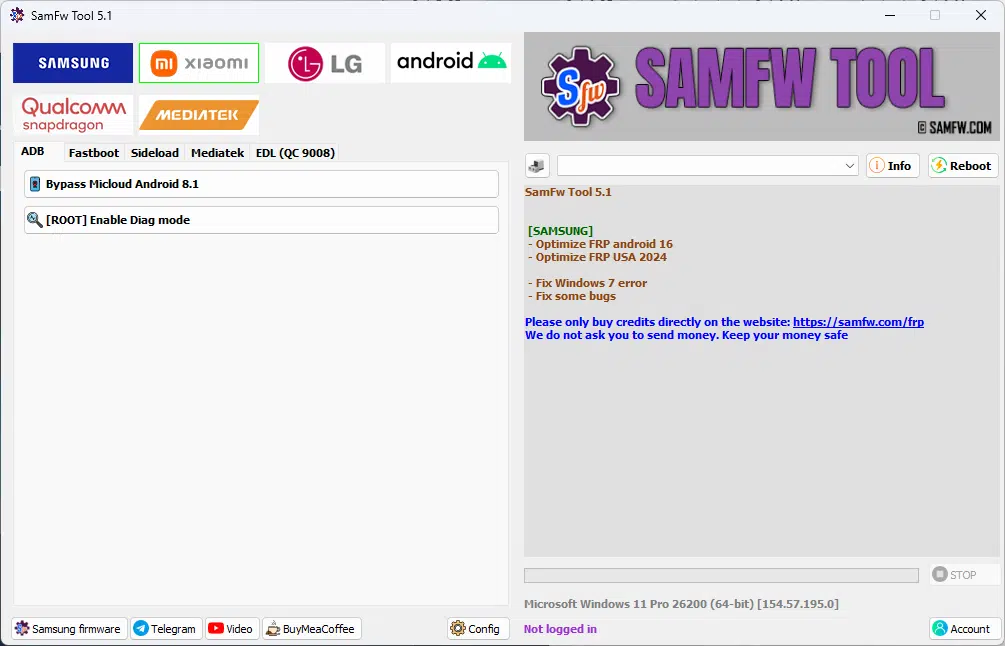
Helps remove samsung frp fix android software issues and manage locked devices easily.
Fastboot
- [UNLOCKED] Remove FRP
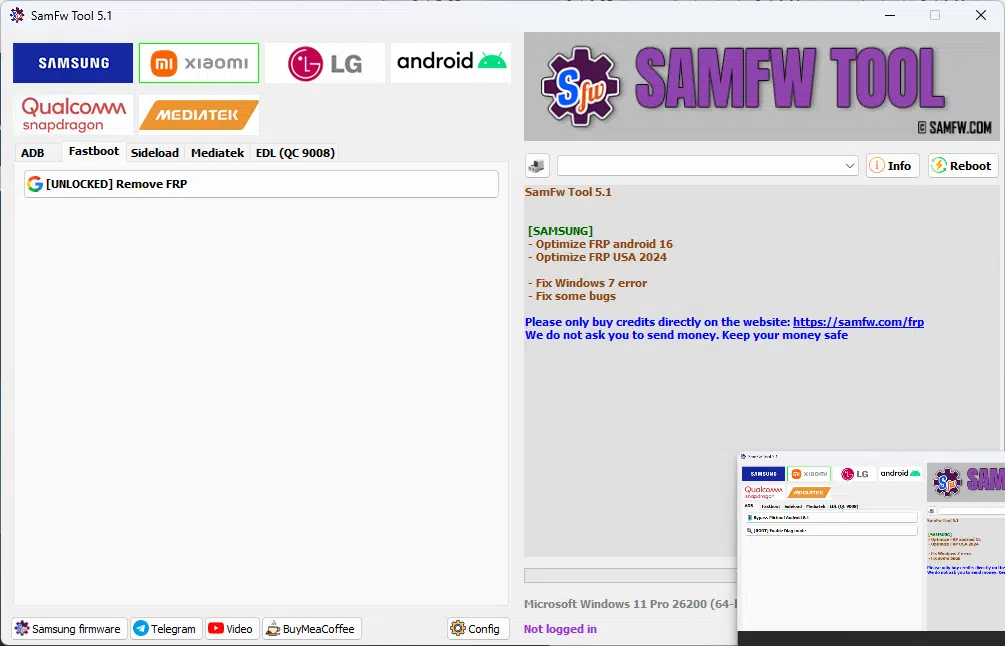
Latest version with samsung frp xiaomi micloud lg and android features
Sideload
- Factory Reset
- Remove FRP
- Reset MiCloud Lock
- [QUALCOMM] Bypass MiCloud Lock (Anti-Relock)
- [QUALCOMM] Remove Bypass MiCloud Lock
- Read Offline MiCloud Information
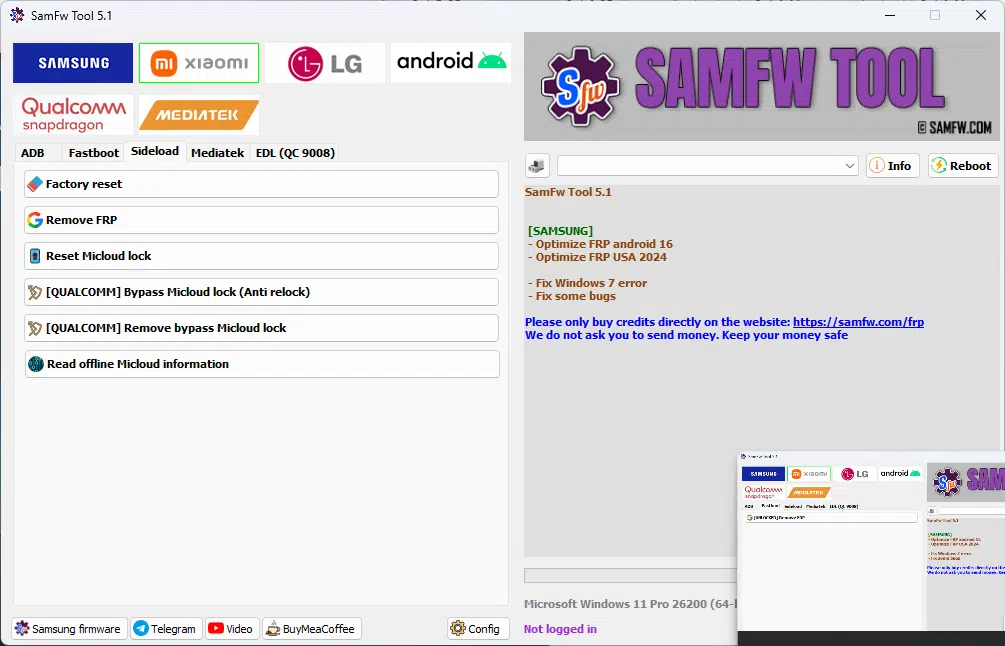
Samfw frp tools for unlocking samsung xiaomi lg and android devices safely.
Mediatak
- Factory Reset
- Format Userdata
- Remove FRP
- Unlock Bootloader
- Relock Bootloader
- Bypass Auth
- Reset MiCloud Lock

Samfw frp tool free download for removing google frp micloud locks and android security restrictions easily.
Edl (Qc 9008)
- Factory Reset
- Remove FRP
- Reset MiCloud Lock
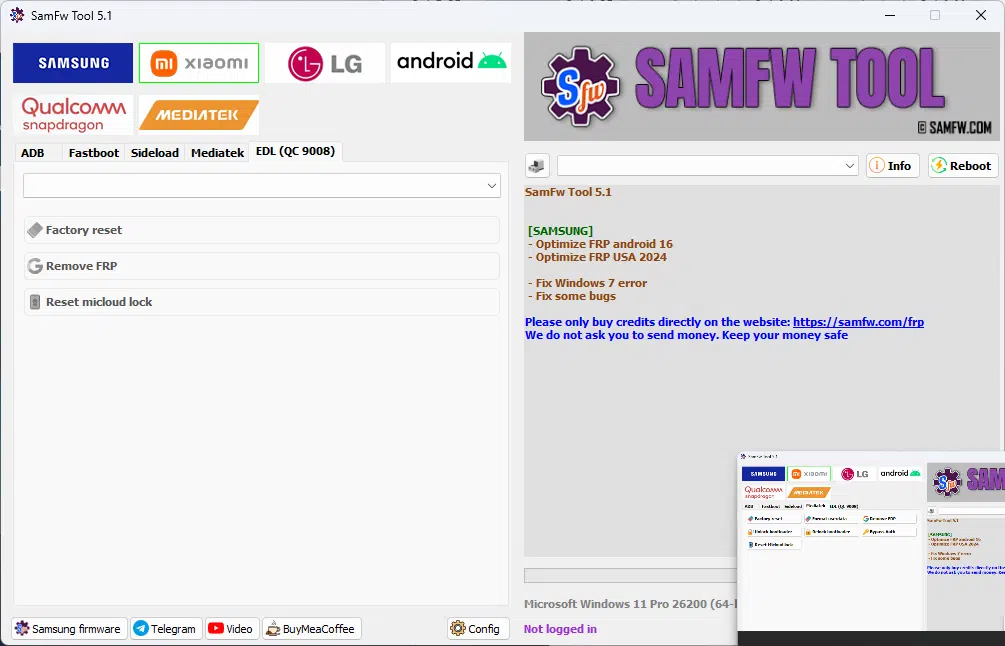
Samfw frp tool dashboard used for removing frp locks on samsung xiaomi lg and android devices.
Lg
MTP
- Factory Reset
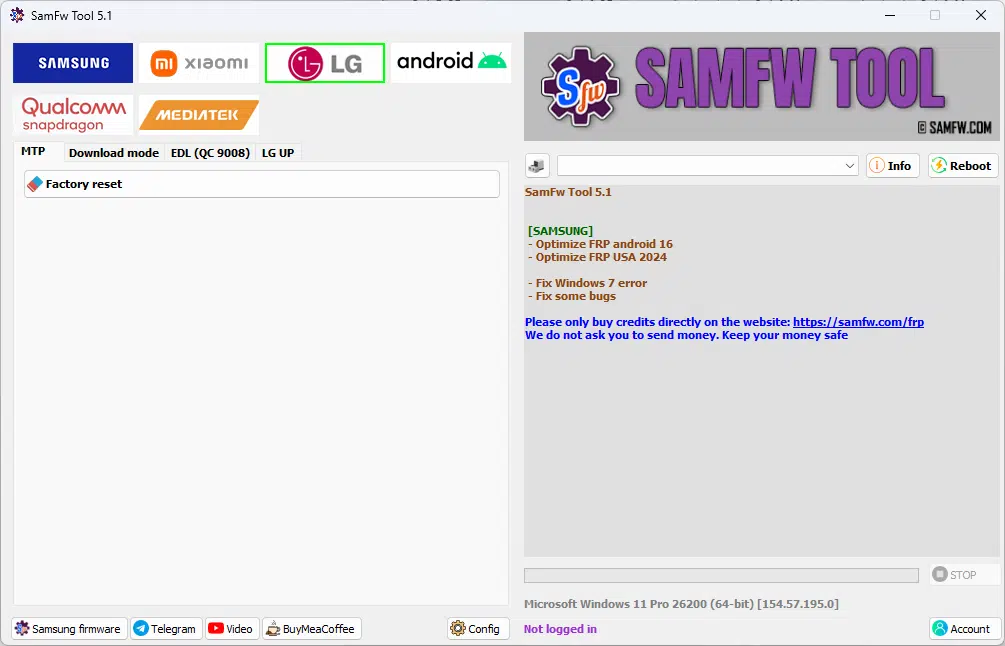
Download screen with samsung frp xiaomi micloud lg and android unlocking options
Edl (Qc 9008)
- Factory Reset
- Remove FRP
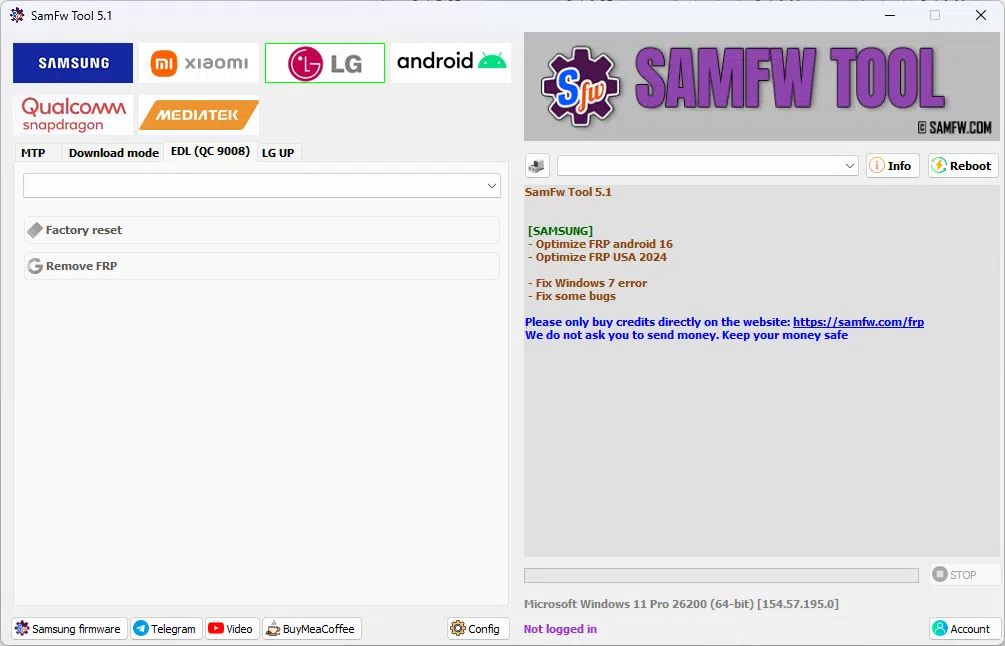
Samfw frp tool free download for removing google frp micloud lock and managing android devices.
Lg Up
- Select DLL (LGUP_Common.dll)
- Select KDZ Firmware
- FLASH

Frp removal flashing and chipset-based repair features
Android
ADB
- Battery Information
- Disable / Enable OTA Update
- Set Language
- Factory Reset
- Hide Developer Options

Used for samsung frp removal xiaomi micloud bypass lg flashing and android unlocking tasks.
FRP
- Open Browser
- Remove FRP
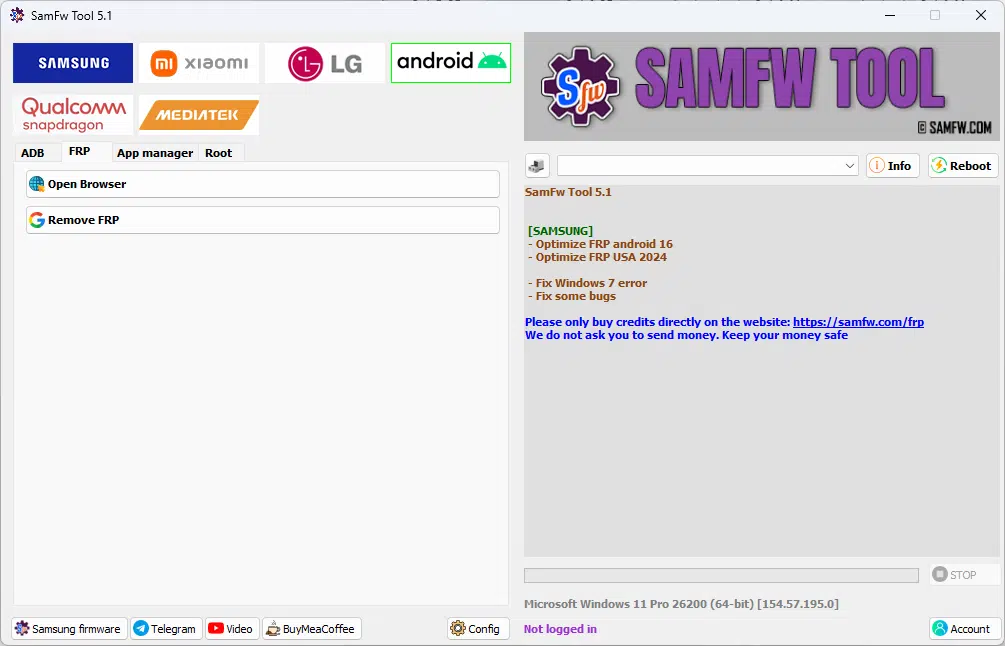
Helps remove frp fix software issues and manage android devices across multiple brands.
App Manager
- Load Apps
- Filter Apps:
- Enabled
- System
- User
- Disabled
- Select All
- Search Apps
- View Package Name
- View App Name
- App Type
- App Size
- Action (Selected Items)
- Delete Bloatwares
- Install APK / XAPK / APKs
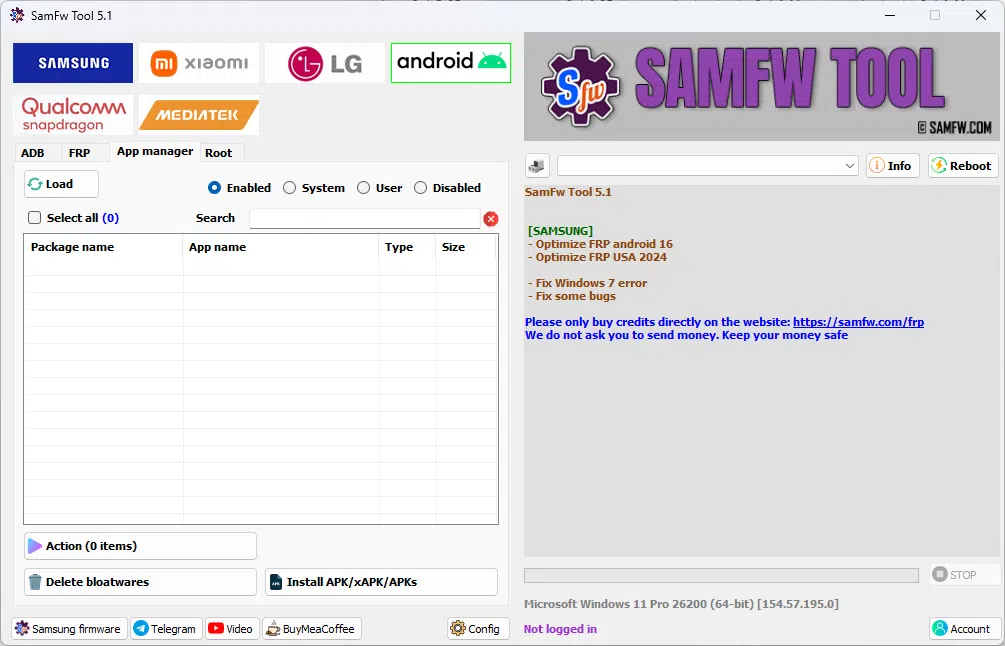
Remove frp fix software issues and manage android devices easily.
Root
- [SU] Remove Screen Lock
Qualcomm Snapdragon
- Firehose Loader (Select File)
- Storage Mode: Auto
- Connect 9008
- Factory Reset
- Format Userdata
- Remove FRP
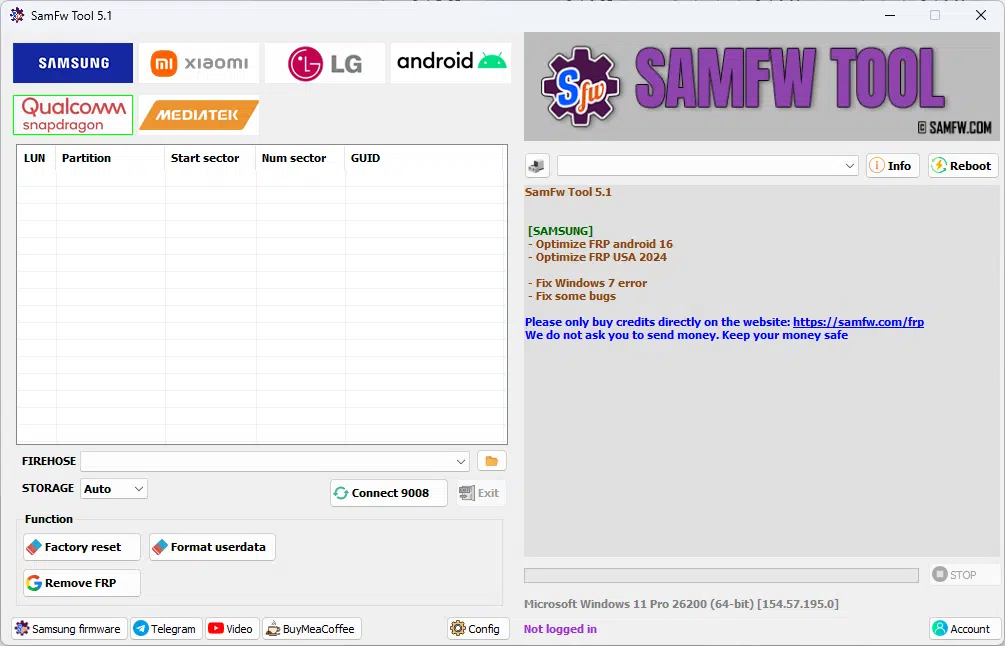
Supports samsung xiaomi lg and android devices for frp removal flashing and advanced phone management.
Mediatek
- Factory Reset
- Format Userdata
- Remove FRP
- Unlock Bootloader
- Relock Bootloader
- Bypass Auth
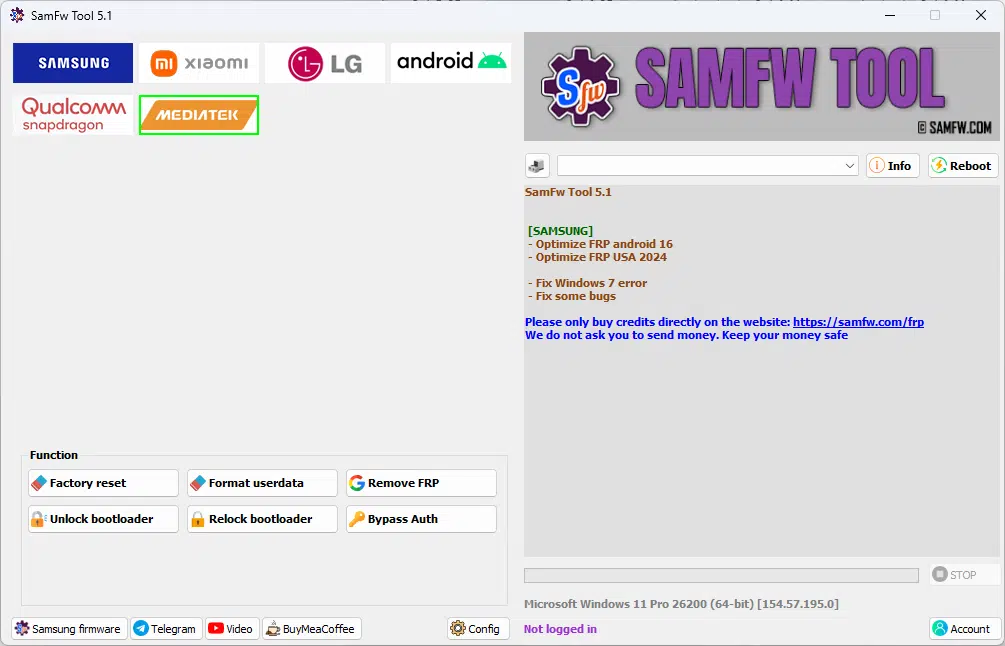
Samfw tool supports samsung xiaomi lg and android devices for frp removal flashing and advanced repair tasks.
Step-by-step Guide: Safe Free Download And Update Process
- Find A Safe Samfw Tool Download By Using The Official Samfw Website A Reputable Developer Website Or A Computer Software Installing Website That You Trust. Install On Your Windows Computer.
- Thoroughly Examine. Using Windows Security Or Another Up To Date Anti-virus Program Check If The Sam Frp Tool Installation File Contains A Virus. Look Through The File Attributes To Check If The File Is What It Is Supposed To Be.
- Once The Installed Extract And Load The Tool As An Administrator. Connect Your Samsung Device Using The Usb Cable And Make Sure That The Detects Your Device.
- Be Cautious When Downloading Updates. Read The Update Descriptions. Look For Th Updates On Reputable Websites. Do Not Download samfw_frp_tool Updates That Contain Modifications Or Add-ons. Samfw Frp Too Updates Are Free From Modifications.
Verified Sources To Obtain The Latest Samfw Tool Free Download
- In Most Cases The Official Samfw Site Will Have The Latest Release Of Sam Frp Tool.
- Often Unofficial Sites Will Add Advertisements And/or Alter The Samfw Tools. This Can Potentially Be Dangerous When Combined With An Untrusted Source.
- Make Sure To Verify The Release Date And/or Version Of The Before Installing It. If You Are Wanting The Latest Tool Make Sure To Verify That The samfw_frp_tool You Are Going To Install Is The Latest.
- After Downloading Make Sure To Scan It With Your Antivirus Program To Make Sure It Is Safe. Comparing The Checksum Of The Can Also Verify Is What It Claims To Be.
Pre-update Checklist: Backups Drivers And Environment Preparation
- Most Important: Back Up Your Data! Samfw Tool May Erase Certain Data Including Pictures Videos Messages And More. Furthermore When Using Sam Frp Tool There’s A Minor Chance That A Firmware Update Or Device Reset May Not Finish And Leave Your Device In A Bricked State. Backup App Data: Backups Will Allow You To Restore Your Data And App Settings.
- Usb Drivers Are Essential: Samsung Firmware Updates May Fail Due To Insufficient Or Outdated Samsung Usb Drivers. Make Sure Your Samsung Usb Drivers Are Up To Date.
- Stability Is Key: A Bricked Device Is Better Than A Bricked Device With No Electricity. Make Sure Your Device Has A Full Battery Your Computer And Internet Have A Stable Connection And You’re Using A Good Quality Usb Cable.
- Precision Is Key: You May Have To Provide Several Pieces Of Information About Your Device. This Includes The Model Csc And Firmware Region.
There’s Also A Chance You’ll Have To Provide This Information For Samfw Tool As Well.
- Most Important: Back Up Your Data! Samfw Tool May Erase Certain Data Including Pictures Videos Messages And More. Furthermore When Using Sam Frp Tool There’s A Minor Chance That A Firmware Update Or Device Reset May Not Finish And Leave Your Device In A Bricked State. Backup App Data: Backups Will Allow You To Restore Your Data And App Settings.
- Usb Drivers Are Essential: Samsung Firmware Updates May Fail Due To Insufficient Or Outdated Samsung Usb Drivers. Make Sure Your Samsung Usb Drivers Are Up To Date.
- Stability Is Key: A Bricked Device Is Better Than A Bricked Device With No Electricity. Make Sure Your Device Has A Full Battery Your Computer And Internet Have A Stable Connection And You’re Using A Good Quality Usb Cable.
- Precision Is Key: You May Have To Provide Several Pieces Of Information About Your Device. This Includes The Model Csc And Firmware Region. Also Check Your Device’s Android Version And Any Available Updates.
A Safe Update Sequence With Rollback Options If Things Go Wrong
- Samfw Tool Modifies Your Firmware And You Can’t Go Back To The Firmware Version You Had Before Using It. Back Up Data And Note The Firmware Version You Have Before Using It.
- To Download The Firmware Version For Your Device Find The Website Samsung Provided And Enter Your Device Model Number. Choose The Region You Purchased Your Device From. Once You Have Downloaded The Firmware Verify The Files.
- Keep The Device Connected To The Computer Via Usb And The Device Charged While Using Tool. If There Is An Interruption To The Power Supply Or The Usb Connection The Firmware May Not Be Installed Correctly.
- Problems May Also Occur When Booting The Device And Tool May Not Function Correctly. To Be Safe Know How To Boot Into Recovery Mode. You May Also Need The Firmware Version You Are Flashing And Odin.
- Use At Your Own Risk.
Common Issues After Updating And Quick Fixes
- After Upgrading The samfw_frp_tool Connection Issues Are Typically Caused By Driver Issues. To Avoid This Make Sure You Have The Latest Samsung Usb Drivers And Try Restarting Your Computer And Using A Better Quality Usb Cable To Connect Your Phone.
- If samfw_frp_tool Is Not Launching Try Running It With Administrator Privileges And Check If Your Antivirus Program Is Blocking It. If The File Is Trusted It Is Safe To Add An Exception To Your Antivirus.
- If You Are Having Issues With Adb Or Frp In Tool Try Using A Different Usb Port And Make Sure Usb Debugging Is Turned On.
- If Samfw Tool Is Corrupted Or Some Files Are Missing Try Getting The Latest Version Of The Program And Extract It To A Different Location.
- If An Unusual Or Unclear Error Is Occurring Try To Determine The Cause Of The Error Yourself. There Are Many Resources Available That May Help.Tool Is Often Updated So Corrupted Or Outdated Files May Cause Issues With The Tool.
Troubleshooting The Most Reported Post-update Problems And Their Remedies
- The Samfw Tool Will Help Find The Most Common Post-update Issues And Then The Solutions Will Be Given For Those Issues. Most Of The Solutions Will Require Admin Access.
- If Crashes When Launching Or Launches But Crashes Immediately Try Restarting The Computer Re-downloading Sam Frp Tool And Installing The Most Recent Version And/or Temporarily Disabling Security Software.
- To Resolve Device Connection Issues Try Different Usb Cables Usb Ports And Check Your Usb Debugging Is Turned On. Also Check Your Device Is Listed In The Device Manager.
- Most Important Check The Internet Connection To Access Firmware And Use The Correct Device Mode. Also Clear Your Cache And/or Temporary Files. Finally Download The Any Other Associated Tools You Want To Use.
When To Re-flash When To Clear Caches And When To Seek Community Help
- Use Samfw Tool Only As Last Resort: Use samfw_frp_tool To Re-flash Firmware On Samsung Devices When Common Methods Like A Factory Reset Cannot Be Performed Due To A Boot Loop Updates Fail Or Become Stuck Or The Device Files Become Corrupted.
- Clear Caches To Improve Phone Performance: samfw_frp_tool Can Be Used To Flash A New Firmware To A Samsung Device. If The Device Begins To Act Strangely Or Have Minor Glitches First Try Clearing The Phone’s Cache.
- Post To The Forums For Assistance Is Used To Capture And Display Information From A Samsung Device. If Provides Vague Messages Or The Model Number Is Unknown Post To The Forums For Assistance.
- Advanced Tool Functions Require Planning: In Order To Use To Perform An Advanced Function Like Flashing A Firmware Make Sure You Take The Proper Planning Steps To Ensure Your Samsung Device Is Prepared. Post To The Forums For Assistance.
Why Upgrading To The Latest Samfw Tool Is Essential
- Samfw Tool Can Be Updated For A Reason: Newer Versions May Work With More Recent Samsung Firmware And Android Builds As Well As Newer Security Patches. This Can Allow Users To Avoid Inter-version Incompatibility Issues.
- It Can Also Improve The Itself: Newer Versions May Include More Sampling Frameworks And Improve Or Add Features.
- Better Failure Rate: Using The Latest Version Of Reduces The Failure Rate While Performing Actions Such As Firmware Handling And Authorized Frp Operations And Improves Device Detection.
- More Assurance: The Latest Version Of Samfw Frp Tool Provides Users The Latest And Most Reliable Changes Made By Developers And Improves.
Conclusion
The Samfw Tool Has Recently Been Updated And Provides Users With The Ability To Easily Manage Devices Check Compatibility And Perform Various Firmware Functions And Authorized Service Tasks. The Updated Also Provides Users With The Ability To Detect And Manage A Broader Range Of Devices And Manage Various Android And One Ui Firmware Levels.
Prior To Downloading And Installing The Users Should Check The Reputation Of The Site From Which They Will Obtain The Tool. Upon Verification Of The Site Reputation Users Should Scan The Tool For Viruses Verify That The Samsung Usb Drivers Are Installed And Verify That Their Device Is Supported (i.e. Same Model Region Firmware Android Version Chipset Etc.).
Once Prepared As Stated Above Users Can Use The Tool To Perform Various Tasks On Their Samsung Devices. The Samfw Frp Tool Can Be Used To Perform Factory Resets On Devices. When Using The Tool Users Should Always Perform A Backup Of Their Device Check The Battery Level Of The Device Use A Wired Connection To The Device And Check The Firmware Version Of The Device.
How To Download
- Find The File Or Content You Want To Download.
- Click On The (Download Link) Provided.
- Choose The Destination Folder On Your Device To Save The Downloaded File.
- Wait For The Download To Complete And Enjoy Your Content!
SamFw Tools 6.1
Download Link:: Usersdrive – Mediafire – 4shared – My.pcloud – Playbook – DropBox – Mega – Vexfile – Google Drive