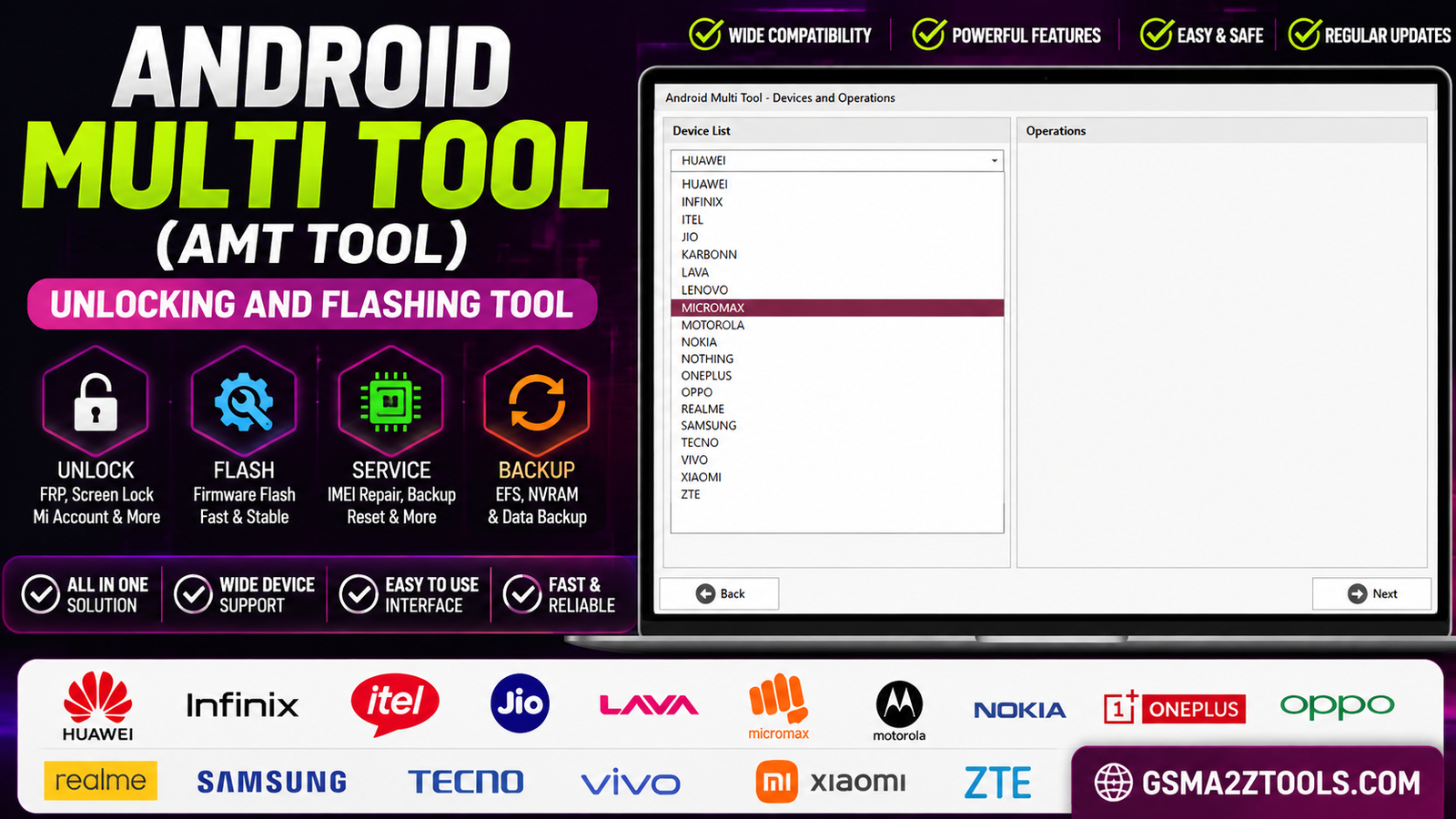
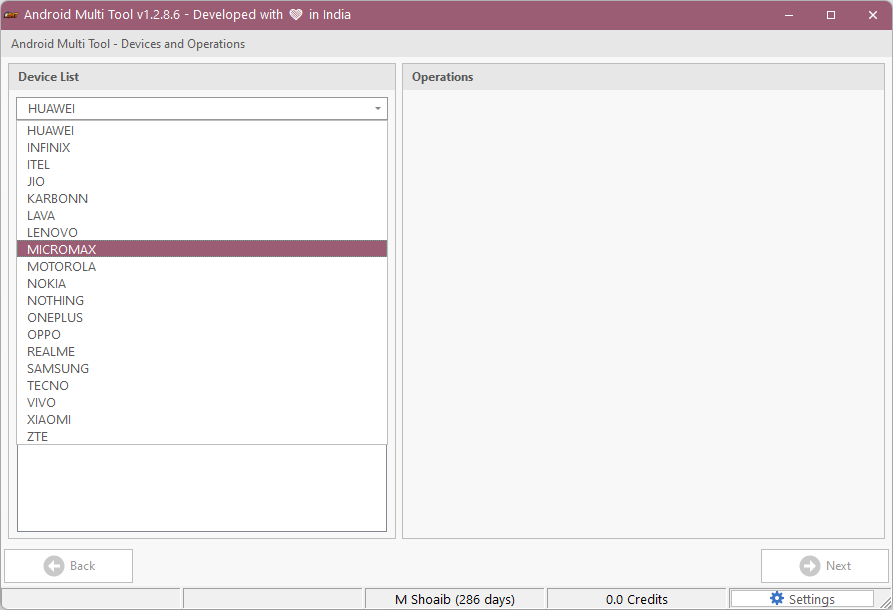
The amt tool’s device selection screen lists over 20 supported brands letting users pick their phone’s manufacturer before choosing an unlock flash or repair operation.
Using Android Multi Tool Is Not Without Risks. An Unexpected Click Can Result In The Inability To Access Your Device. This Can Happen When The Tool Triggers A Lock Driver Resets Or Detects Something It Shouldn’t. Unlike Other Tools Android Multi Tool Has Features That Can Be Very Helpful But They Can Also Be Very Dangerous If Used Incorrectly. The Goal Of This Document Is To Educate Users About The Risks And How To Avoid Them. This Will Be In The Order Of What Users Need To Know The Most. It Is Recommended That Users Learn The Basics Before Using More Advanced Features Of This Tool To Prevent Accidental Bricking Of Devices.
What Is Android Multi Tool And How Does It Work?
- The Android Multi Tool Is A Windows Pc Application Used For Performing Various Operations On Android Based Phones And Tablets. These Operations Include Reading Phone Information Resetting Passwords And Performing General Phone Upkeep Tasks.
- It Can Only Perform The Aforementioned Tasks When The Phone Or Tablet Is Connected To The Pc Via A Usb Cable And The Phone Is Recognized By The Pc In A Special Mode E.g. Adb Fastboot Or Recovery Mode.
- The Tool’s Main Functions Also Include Rebooting The Phone In Various Modes And Wiping User Data. Additionally It Provides A Graphical Interface For Adb And Fastboot Commands.
- Because The Actions Performed By This Tool Can Lead To Undesirable And Irreversible Consequences E.g. Loss Of Personal Data It Is Recommended That The User Understands The Implications Of The Actions.
Tips For Getting The Best Results With Android Multi Tool
- Make Sure You Have The Right Version Of Android Multi Tool. Only Obtain It From A Trusted Source. Know That Multiple Sources May Claim To Have The Correct Version But There May Be Mirrors That Include Malware. Always Use The Latest Version And Keep Your Device Firmware Up To Date.
- Make Sure Your Usb Connection Is Working. The Drivers And Adb/fastboot Should Be Enabled. If You Are Not Sure How To Set Up A Connection Contact Your Service Provider. The Usb Connection Should Allow Android Multi Tool To Detect Your Device.
- Make Sure You Are Cautious About The Kinds Of Actions You Take. Android Multi Tool Can Cause Data Loss. Backup Your Data If You Are Going To Take Actions That Might Affect Your Data.
- Make Sure You Understand The Instructions. Read The Prompts And Take The Actions Requested In The Order They Appear. If You Disconnect The Device During A Process It May Not Complete Its Intended Function.
Why Android Multi Tool Exists and When You Actually Need It
- Android Multi Tool Is A Tool For The Average User To Be Able To Do Some Basic Maintenance And Troubleshooting For Their Android Devices.
- This Tool Can Be Very Useful If Your Device Is Locked Or If Your Device Is Having Some Unexpected Issues.
- Advanced Users And Technicians May Find This Tool Useful As They Can Use Drivers Recovery Mode And/or Fast Boot Mode To Perform Tasks On A Device.
- However The Amt Tool Can Perform Tasks To Reset A Device Change Settings And/or Erase Data On A Device.
- This Tool Should Only Be Used To Perform Tasks On A Device That The User Of The Tool Is Authorized To Perform. It Is Best To Obtain Authorization From The Owner Of The Device As Unauthorized Use Of This Tool Can Result In Loss Of Data And/or Undeserved Access To The Device.
Overview Of Common Device Problems The Tool Targets (Frp Bypass Reset Adb Commands)
- After A Factory Reset Android Multi Tool Can Be Used To Evaluate Frp Lock Situations And Facilitate Legal Recovery Where The User Is The Actual Owner Or The Customer Has Given Permission To Perform Repair/service.
- The Amt Tool Can Be Used To Accomplish Some Tasks Related To Resetting The Device Such As Removing Screen Locks And/or Wiping The Device. However The Amt Tool Can Also Be Used To Completely Reset A Device To Factory Settings.
- The Android Multi Tools Make Use Of Adb And Can Be Used To Perform Several Tasks On Connected Android Devices Including Retrieving Device Information.
- It Is Important That Users Understand The Laws Of Their Jurisdiction And What Is Considered Lawful Use Of A Device. For Instance The Tools Can Be Used To Legal Gain Access To A Device To Perform Service/repair Or To Manage/reset The Device To Its Factory Settings. However These Tools Cannot Be Used To Illegally Access A Device.
Situations Where Alternative Official Methods Are Safer (Manufacturer Support Google Account Recovery)
- If Your Device Is Still Covered By Warranty Get Help From Manufacturer Support Instead Of Using Android Multi Tool. This Is Because Warrant Technicians Can Assist You With Your Issues Without Compromising Your Warranty Or Accidental Data Loss.
- If You Can’t Remember Your Google Account Login Try Using Google Account Recovery To Regain Access To Your Account. This Will Let You Keep Your Google Security Features On Your Device.
- If Your Device Is Locked Damaged Or Dysfunctional Go To An Authorized Service Center. Android Multi Tool Will Not Help You Here. This Is Because Service Center Technicians Can Assist You With Your Issues And Reduce The Risk Of An Irreparable Damage To Your Device.
- For Devices With Important Or Classified Data Try Contacting The Device Manufacturer Or Google For Assistance And Use Their Recovery Features To Help You Authenticate Your Identity. These Features Are Safer And Offer More Protection Of Your Identity Compared To Android Multi Tool Features.
Quick Checklist To Decide If The Tool Is Appropriate For Your Case
- First Verify That Your Device’s Model And Android Version Are Compatible With Android Multi Tool. Also Check Your Device’s Chipset As Some Tools Are Only Compatible With Certain Chipsets.
- There Are A Number Of Actions The Tool Can Perform. These Actions Include Retrieving Device Info Resetting Pattern/pin Bypassing Frp On Authorized Devices And Simple Adb And Fastboot Commands.
- Making Sure Your Battery Is Fully Charged And Using The Correct Usb Drivers And A Quality Usb Cable Are Essential To Using The Tool. Also Make Sure Your Device Is In Mode That Allows The Tool To Communicate With It.
- And Lastly Tools In The Amt Family Are Rather Unstable And Can Lead To A Loss Of Data. A Backup Should Be Created If You Are Not Certain Of What You Are Doing. Only Use Amt Tools If You Are Authorized To Repair Or Work On The Device In Question.
Preparing Your Pc And Device For Safe Use
- First Verify That Your Device’s Model And Android Version Are Compatible With Android Multi Tool. Also Check Your Device’s Chipset As Some Tools Are Only Compatible With Certain Chipsets.
- There Are A Number Of Actions The Tool Can Perform. These Actions Include Retrieving Device Info Resetting Pattern/pin Bypassing Frp On Authorized Devices And Simple Adb And Fastboot Commands.
- Making Sure Your Battery Is Fully Charged And Using The Correct Usb Drivers And A Quality Usb Cable Are Essential To Using The Tool. Also Make Sure Your Device Is In Mode That Allows The Tool To Communicate With It.
- And Lastly Tools In The Amt Family Are Rather Unstable And Can Lead To A Loss Of Data. A Backup Should Be Created If You Are Not Certain Of What You Are Doing. Only Use Amt Tools If You Are Authorized To Repair Or Work On The Device In Question.
System Requirements And Recommended Os Settings To Avoid Compatibility Issues
- Computers Must Meet Minimum Requirements: Using An Computers With At Least A Dual Core Processor And 4gb Or More Of Ram Is Necessary For Optimal Performance Of Android Multi Tool. Please Make Sure You Are Using A Recent Version Of Windows And That You Have At Least 500mb Of Free Space On Your Hard Drive.
- Using The Most Recent Build Of Windows Reduces The Likelihood Of Tools Crashing: Use The Most Recent Build Of Windows And You Will Be Less Likely To Experience Tool Or Driver Related Crashes.
- Using The Correct Drivers Reduces Tool Crashes: There Are Multiple Ways To Improve Tool Stability. For Instance You May Want To Install The Correct Android Usb Drivers For Your Device And/or Enable Usb Debugging.
- There Are Many Ways To Improve Compatibility Of The Tool: Disabling Security Restrictions That Conflict With The Tool Can Help. Also Running The Tool As An Administrator Can Improve Stability.
Also Read
Feature:
- Factory Reset and FRP
- Factory Reset
- Flash
- Reset FRP
- Lock Bootloader
- Unlock Bootloader
- RPMB Write
- RPMB Read
- Partition Manager
- Health Check
Suported Devices:
- Huawei
- Infinix
- Itel
- Jio
- Karbonn
- Lava
- Lenovo
- Lg
- Micromax
- Motorola
- Nokia
- Nothing
- Oneplus
- Oppo
- Realme
- Samsung
- Tecno Vivo
- Xiaomi
- Zte
Authorization Server Status
Server Name
- Infinix / Tecno / Itel Mediatek Auth
- Infinix / Tecno / Itel Spreadtrum Auth
- Oppo / Oneplus / Realme Secracy Decrypt
- Oppo / Oneplus / Realme Demo Remove
- Oppo / Oneplus Mediatek Auth
- Realme Mediatek Auth
- Nokia Fastboot HMD Auth
- Vivo Qualcomm / Mediatek Auth
- Xiaomi EDL / BROM Auth
- Xiaomi Fastboot to EDL Auth
- Xiaomi Mi Assistant FRP Auth
- Transsion Anti Crack Fix Auth
Amt tool download
Legality Ethics And Risks You Shouldn’t Ignore
- Android Multi Tool (amt): Note: This Program Should Only Be Used On Devices You Own And Are Authorized To Service. Unauthorized Unlocking And Service May Violate The Privacy Rights Of The Device Owner And Could Be Illegal.
- Handle With Care: Consider All Data On The Device To Be Private When You Are Required To Perform Services Such As Repairs Flashing And/or Unlocking.
- Can’t Stress This Enough: There Is A Risk The Device Could Become Permanently Silent/bricked Data Could Be Erased The Device Could Be Vulnerable To Attacks And The Device’s Security Could Be Compromised.
- Due Diligence: Check The Legality And Your Ability To Service The Device. Check If The File You Are About To Download Is Safe. Scan The Amt For Malware. Back Up All Important Data On The Device.
Understanding Lawful Uses Vs. Misuse (Personal Device Recovery Vs. Circumventing Ownership)
- There Are Legitimate Uses For Android Multi Tool. The Main Function Should Be To Assist The User In Recovering Their Own Personal Device. For Example If A User’s Android Device Is Locked Out Because Of A Forgotten Credentials The User Could Benefit From Android Multi Tool.
- There Are Significant Distinctions Between Legitimate Uses Of Android Multi Tool By The User And Illegal Uses Of The App To Remove Security And Ownership Checks To Access Another User’s Device.
- If The User Has Confirmed Ownership Of The Device There Are Precautionary Steps The User Can Take To Prevent Data Loss. The User Should Back Up Any Important Data And Consider The Possibility That Using Android Multi Tool May Erase Data.
- Using Android Multi Tool To Circumvent Ownership And Security Checks To Gain Access To Another User’s Data May Be Considered An Invasion Of User’s Privacy And May Be Illegal.
Choosing The Right Version And Download Source
- Check Your Device’s Chipset Android Version And The Function You Want To Perform With Multi Tool Before Each Use To Verify Compatibility. Not All Features Are Supported For All Devices.
- Get Multi Tool From Trusted Places. You Can Find It On The Official Developer’s Site Or On Repair Forums.
- While Using Multi Tool You Can Find Feedback From Users And Read Changelogs To See If That Version Of Multi Tool Is Good And Stable.
- You Need To Be Very Cautious About What Sites You Get The Tool From. You Need To Check The Downloaded File With An Up To Date Antivirus Before Using It And Make Sure It Isn’t From A Really Old Source.
How To Verify Reputable Sources And Avoid Bundled Adware
- Only Get Android Multi Tool From The Official Site Or Trusted Sites To Avoid Getting A File With Hidden Malware.
- Thoroughly Check The Software You Want To Install. Check The Digital Signature And File Hash Of The Software You Want To Install. Check What Users Have Recently Said About The Software.
- You Should Be Able To Choose The Setup Options You Want When Installing Android Multi Tool. If You See That Android Multi Tool Will Set Other Software You Don’t Want To Be Installed Do Not Accept The Offer.
- Run The Installer Through An Up-to-date Antivirus Program And Scan The Installer With An Online Virus Scanner To Be Sure. Also Do This If You Plan To Install The Program On Your Main Android Device.
Conclusion
Android Multi Tool Functions As A Device Information/connection Troubleshooting Utility And As An Adb/fastboot Tool. It Can Also Be Used To Reset/unlock Phones. While It Is Handy To Have A Tool With These Functions All In One Place Many Of The Tools Can Be Used To Deactivate/ Factory Reset Phones Change Security Settings And Cause Device/app Incompatibility.
Always Verify Ownership/service Permission Of The Device. Check Tools Compatibility With The Device And Download Latest/correct Usb Drivers.back Up Critical Data. Check/verify Tools Download/host Site. Record Device Model Android Version And Imei. If Phone Issues Can Be Resolved By Phone/manufacturer/service Center Then Phone Should Be Resolved Using Those Means As They Are More Secure Especially If Phone Contains Personal/business Critical Data And Phone Is Within Warranty.
How To Download
- Find The File Or Content You Want To Download.
- Find The Download Page And Don’t Click Button And Click Only The (Download Link)
- Choose The Destination Folder On Your Device To Save The Downloaded File.
- Wait For The Download To Complete And Enjoy Your Content!
Android Multi Tool v1.3.6.5
Click Here to Rent This Tool on WhatsApp
Download Link:: Usersdrive – Mediafire – 4shared – My.pcloud – Playbook – Google Drive – DropBox – Mega – Vexfile